Batches and pickups
A batch is one box of drives for one recycler pickup. Its code is the pickup date: PU-2026-10-08 (a second batch on the same day gets -B).
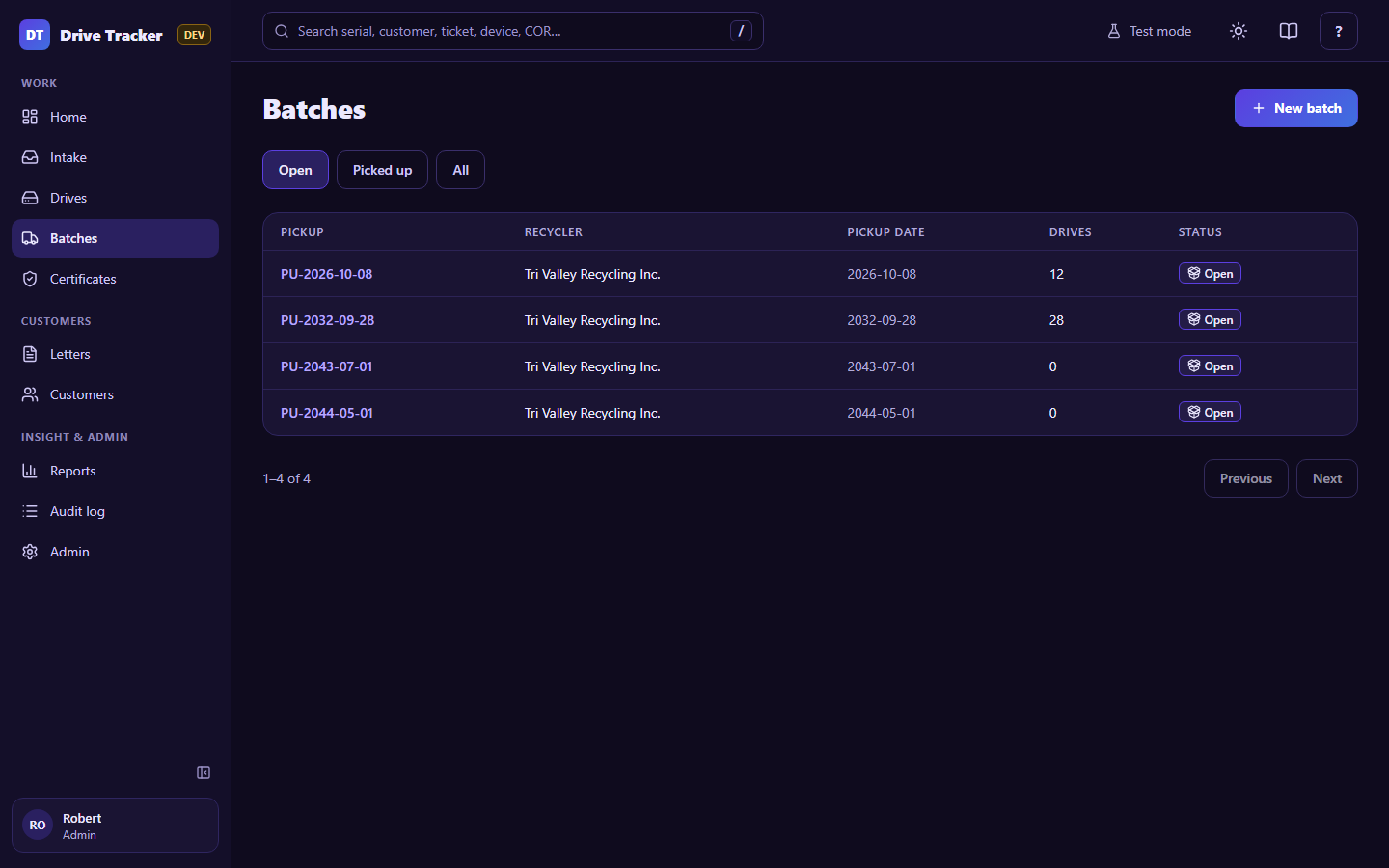
1. Start a batch
When you've agreed a date with the recycler: New batch (or New pickup batch on Home). Pick the recycler and the planned date.
2. Fill it
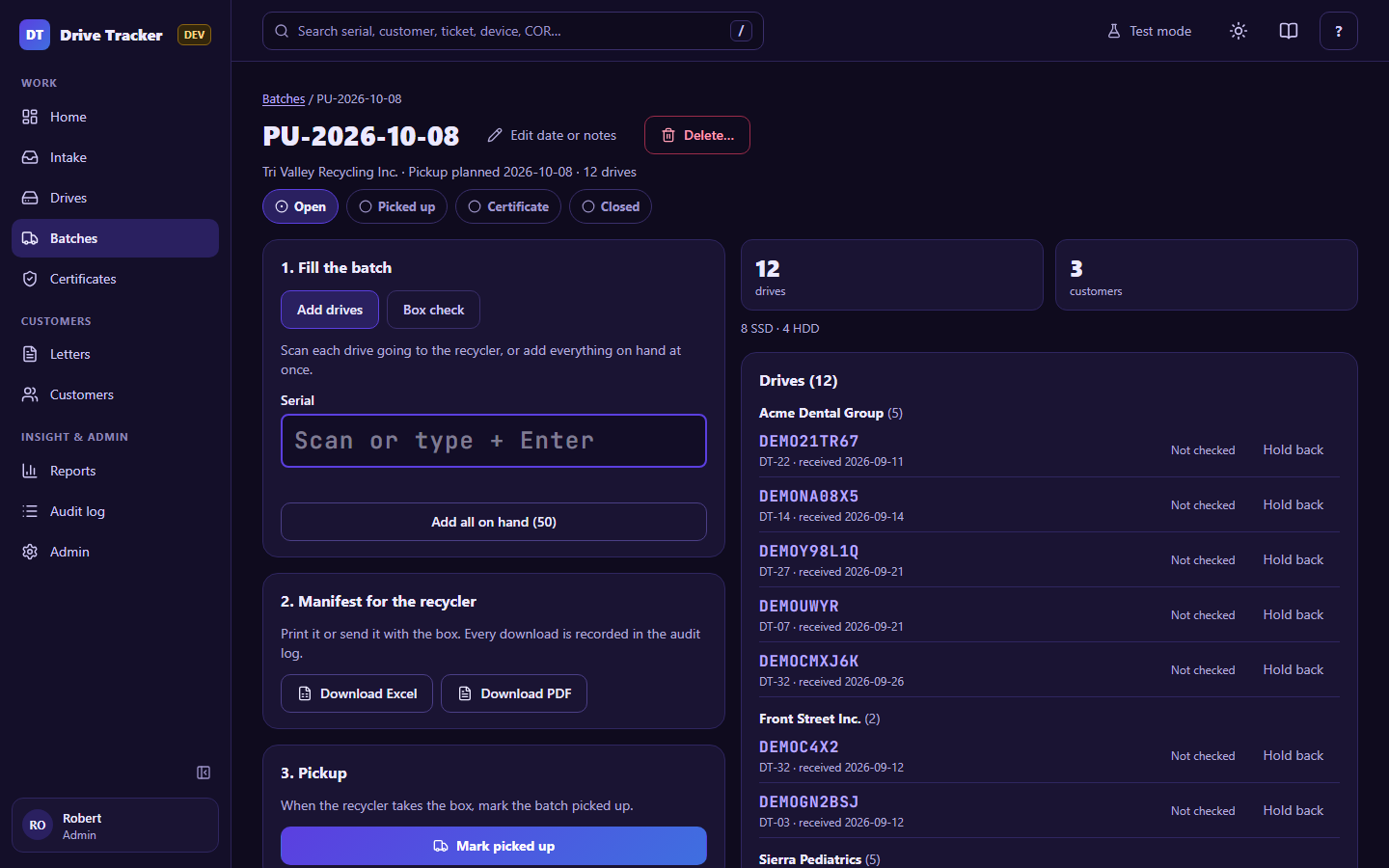
- Add drives: scan each drive as it goes into the box. Only drives on the shelf (Received) can be added.
- Add all on hand (N): adds every drive on the shelf at once.
- Box check (optional): scan the drives in the box to tick them off, so nothing is missing or extra.
- Hold back: takes a drive out of the batch again (it goes back on the shelf).
The summary shows how many drives and customers are in the box, and the mix of drive types. The steps across the top (Open → Picked up → Certificate → Closed) show where the batch is.
3. Manifest
Download Excel or Download PDF: the sheet the recycler gets with the box (same columns as the Tri Valley sheet). Every download is recorded in the audit log.
4. Pickup
When the truck takes the box: Mark picked up. The drives become Picked up and the batch waits for its certificate.
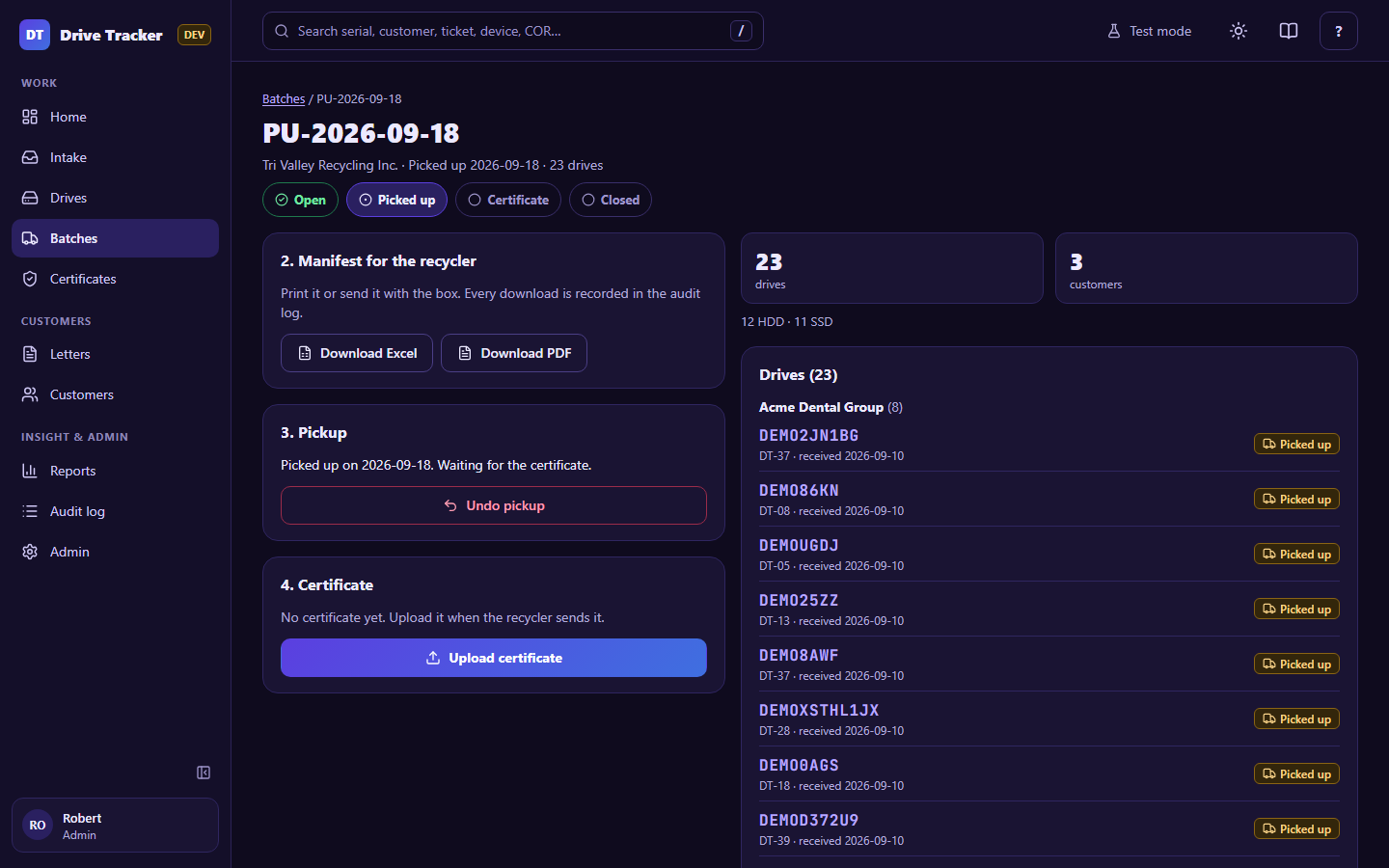
The truck didn't come?
A Manager can Undo pickup (with a reason) until any drive in it is certified.
5. Certificate and closing
Upload the certificate from the batch page or from Home. When every drive in the batch is certified, the batch closes by itself.